

- Easy to use with a simple interface
- Powerful editing, conversion, and OCR tools
- Affordable pricing for both individuals and businesses
- Works well with large files and batch processes
- Supports secure PDF features like password protection and digital signatures
- Free version has limited features
- One-time purchase can be expensive for some users
Price: $31.99/year
Wondershare PDFelement is a popular PDF editing tool that promises to make working with PDF documents easy and efficient. It offers a wide range of features, from editing and converting to securing and signing PDFs.
But is it really the complete PDF solution it claims to be? In this honest Wondershare PDFElement review, let’s explore whether PDFelement is truly worth your time and money.
What is PDFelement by Wondershare?
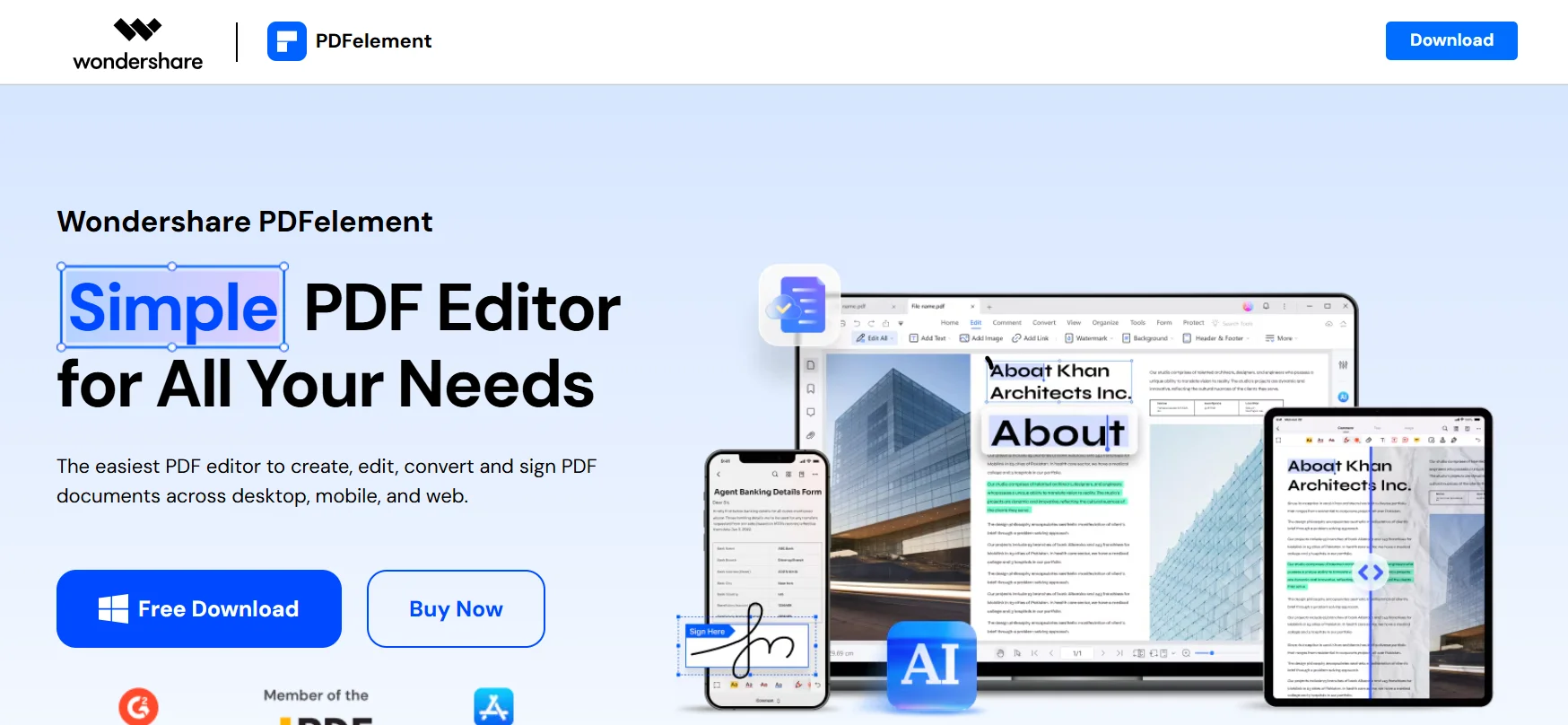
PDFelement is a tool by Wondershare that makes working with PDF files simple and efficient. It allows you to open, edit, and convert PDFs just like any other document.
You can easily change text, add images, highlight important sections, fill out forms, and even sign documents electronically. PDFelement also enables you to convert PDFs to other file types, such as Word, Excel, or PowerPoint, and convert them back to PDFs. One of its key features is Optical Character Recognition (OCR), which turns scanned documents into searchable and editable text.
With a user-friendly interface, PDFelement works on a variety of devices, including Windows, Mac, iPhone, iPad, and Android.
Whether you need to secure a document with a password, combine multiple PDFs into one, or split a large file into smaller parts, PDFelement provides all the tools you need to manage PDFs easily and efficiently.
Who Is Wondershare PDF Element For?
- Students who need to edit, annotate, or fill out PDFs for assignments or notes.
- Professionals who work with contracts, reports, or presentations in PDF format.
- Small business owners who need to manage invoices, forms, and documents.
- Freelancers who require an easy way to sign and edit contracts.
- Anyone who needs to convert, edit, or merge PDFs without complicated software.
- Teams that require a simple way to collaborate on documents and share forms.
Key Features of PDFelement
Edit PDF like Word
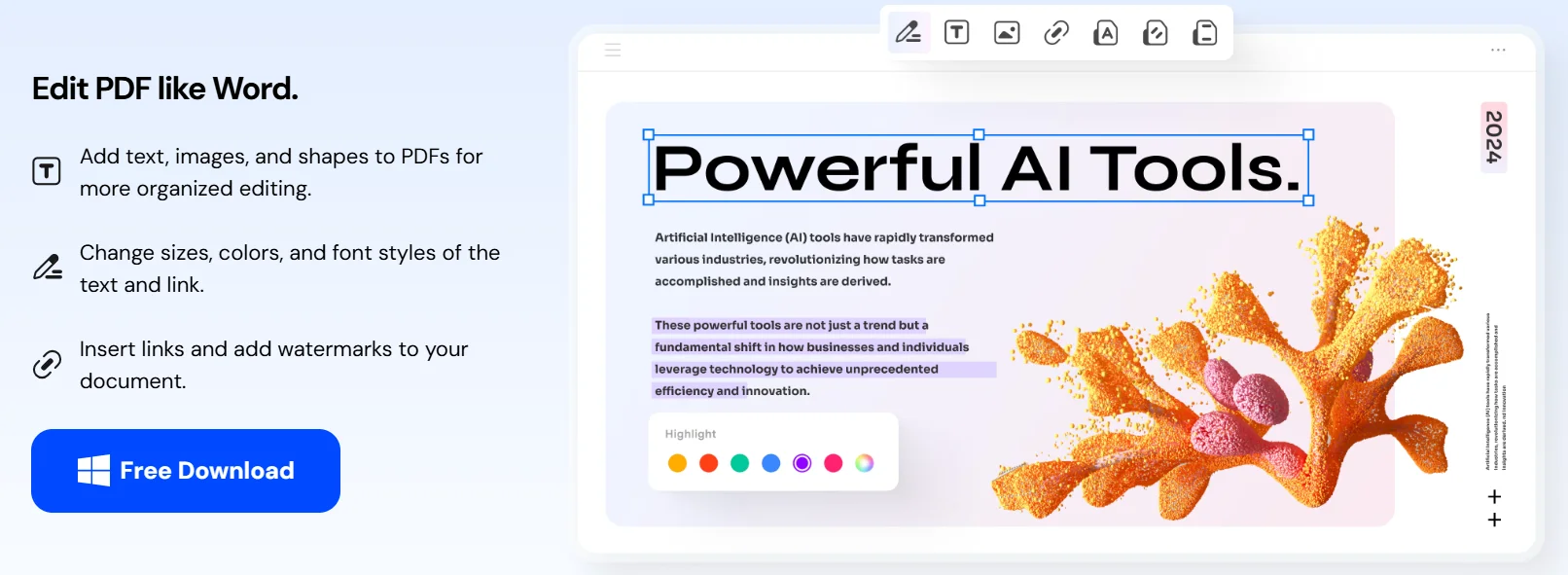
PDFelement lets you edit your PDFs just like a Word document. You can change any text, add new paragraphs, or delete unwanted words. It also allows you to move or resize pictures and adjust fonts, sizes, and colors to fit your needs.
Convert Files
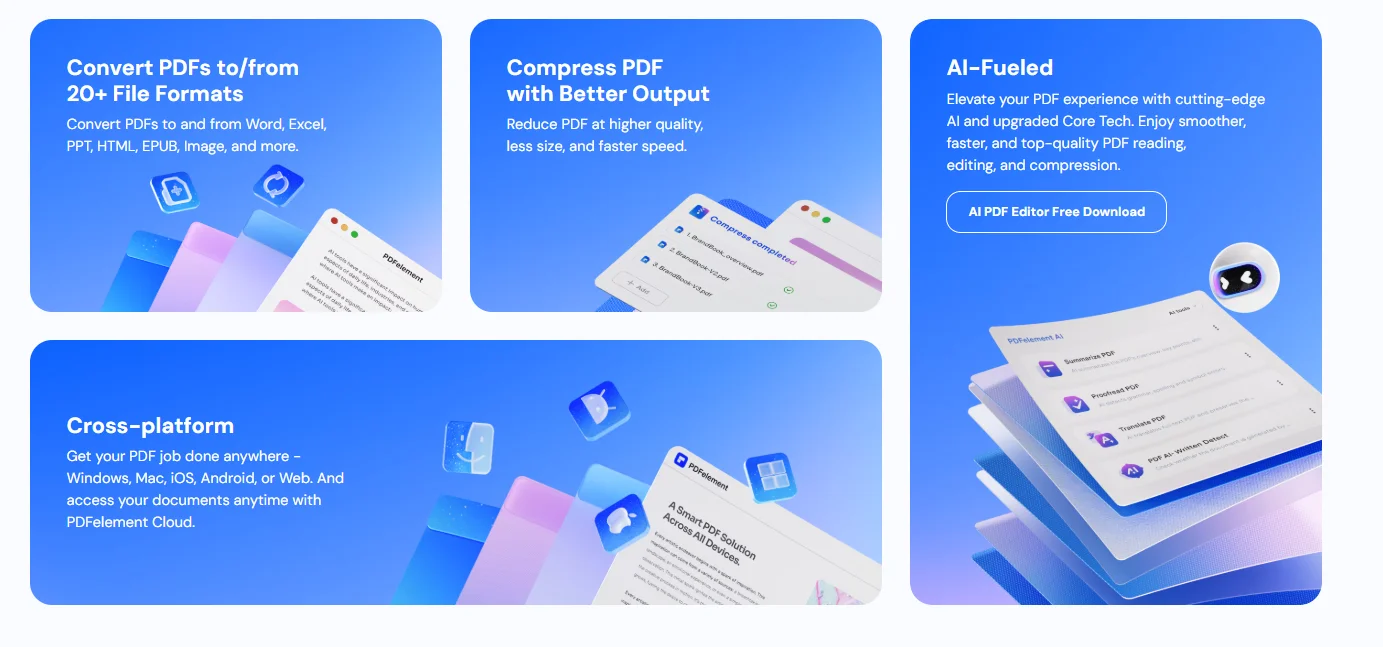
With PDFelement, you can easily convert PDFs to other file types like Word, Excel, or PowerPoint, and vice versa. It keeps the layout, images, and tables intact when converting. You can also convert many files at once to save time.
OCR (Optical Character Recognition)
The OCR feature lets you convert scanned images or documents into editable and searchable text. It can make old paper documents searchable and even allow you to edit scanned receipts, books, or contracts. OCR works in over 25 languages, making it very versatile.
Fill & Create Forms
PDFelement helps you fill out PDF forms with your information quickly. You can also create new forms by adding text boxes, checkboxes, and dropdown menus. It’s also easy to collect answers from filled-out forms and export them into an Excel file.
Sign Documents
You can sign documents with PDFelement by drawing your signature using your mouse or finger. Alternatively, you can type your name and turn it into a signature or upload an image of your real signature. You can even send documents for others to sign electronically.
Protect with a Password
PDFelement lets you protect your PDFs by adding passwords for opening or editing the file. You can also block printing or copying of the content and set an expiration date for the file. For extra security, you can use certificates to verify the document’s authenticity.
Redact Sensitive Information
The redaction tool allows you to permanently hide sensitive information, like names or addresses, from your documents. You can search for specific words or phrases and redact them throughout the entire document. It also removes hidden data that might be missed by standard delete options.
Combine & Split PDFs
PDFelement allows you to combine multiple PDFs into one document or split a large PDF into smaller sections. You can easily extract pages or rearrange the order of pages with a simple drag-and-drop interface. This makes managing large PDF files much easier.
Add Notes & Highlights
You can highlight important parts of your document with different colors or add sticky notes to provide extra information. PDFelement also lets you draw arrows, circles, or lines to emphasize key points. Additionally, you can add stamps like “Approved” or “Confidential” and insert hyperlinks to other pages or websites.
Compress File Size
PDFelement helps you reduce the size of large PDF files, making them easier to share. You can shrink a 50 MB file down to under 2 MB, choosing from low, medium, or high compression options. It also lets you compress many files at once while keeping the quality intact.
AI Helper
The AI helper feature allows you to interact with your document by asking questions or getting summaries. You can get a quick, one-page summary of long reports and translate the document into another language. It can also help you rewrite paragraphs in simpler words or check grammar and spelling.
Works Everywhere
PDFelement works across multiple devices, including Windows, Mac, iPhone, iPad, and Android. You can open the same file on different devices and continue working seamlessly. It also allows you to save your files to the cloud for easy access and editing anytime.
Batch Processing
With batch processing, you can apply tasks like adding watermarks, converting files, or setting passwords to multiple PDFs at once. It saves time when working with many files, letting you complete tasks in bulk while you focus on other work.
Extra Useful Tools
PDFelement includes extra tools like adding or removing watermarks, inserting headers and footers, and adding page numbers. You can rotate or crop pages and even measure distances for technical documents. It also lets you compare two PDF files side by side to spot differences easily.
How to Use PDFelement?
Step 1: Install PDFelement
- Download PDFelement from the official website.
- The free trial lasts for seven days, but some features may be limited.
- After the trial, choose a plan that fits your needs.
Step 2: Open a PDF
- Open PDFelement and load your PDF file in a tab.
- To edit the text, click on “Edit Mode.”
- Select the text you want to change and type in new text. You can adjust the font and size from the panel.
- To edit images, click on the image to resize or replace it.
Step 3: Convert a File
- Go to the “Convert” tab.
- Choose the output format (e.g., Word, Excel).
- Click “Start” to begin the conversion. PDFelement will keep the original layout intact.
Step 4: Use OCR
- If you have a scanned document or an image PDF, open it in PDFelement.
- Click the “OCR” button.
- PDFelement will recognize the text and make it editable.
Step 5: Create a Form
- Go to the “Form” tab.
- Add form fields where needed, such as text boxes or checkboxes.
- Save the form and share it for others to fill out.
Step 6: Sign a Document
- Open the “Protect” tab to add a signature.
- You can draw your signature or upload an image of it.
- Place the signature on the document where needed.
Step 7: Use AI Chat
- Select the “AI” tool.
- Ask questions about the content of your document, and the AI will give answers based on the file.
Step 8: Share and Track Changes
- PDFelement works well for teams.
- You can share documents via cloud or email.
- Track changes using comments to keep everyone updated.
Wondershare PDF Element Pricing Plans

| Plan | Price | Features |
|---|---|---|
| Standard Plan | $79.99 per year | Basic PDF editing, converting, and annotating tools. |
| Pro Plan | $129.99 per year | Includes OCR, batch processing, redaction, and all features in Standard. |
| Quarterly Plan | $11.99 per quarter | Core features for 3 months. |
| Two-Year Plan | $109.99 for 2 years | Discounted price for 2 years, including Standard and Pro features. |
| Perpetual License | $139.99 (or more) | One-time payment for lifetime access, no recurring fees. |
| AI Features | $48 per year | Extra tokens for AI-based features like chat and summarization. |
| Free Version | Free | Limited features, available to try before buying. |
| For Teams | Custom pricing | Discounts available for team plans. |
| For Education | Discounted pricing | Special pricing for schools and students. |
Comparison with Adobe Acrobat
- Adobe Acrobat Pro: $239.88 per year.
- PDFelement offers a more affordable alternative with similar features.
Performance and Speed
PDFelement runs fast on most computers. A 100-page document opens in about two to three seconds, while files with 500 pages load in less than ten seconds. Even large PDFs up to 300 MB with many images open quickly, and you can scroll, zoom, and edit without delays.
Saving files is fast, too. After making changes or adding a signature, saving takes just three to eight seconds. For batch tasks, such as converting 100 files to Word or adding watermarks to 200 documents, PDFelement runs them in the background, letting you continue with other work.
OCR (Optical Character Recognition) works quickly, turning scanned pages into searchable text. One page takes about four to six seconds, and a 50-page contract is processed in about four minutes.
Mobile apps for phones and tablets open, sign, and save files in one or two seconds. For computers with 8 GB of RAM, PDFelement runs smoothly. On older machines or with very large files (over 1000 pages), there may be a short pause when switching between pages, but this is rare.
Wondershare updates keep the software light and improve speed. Compared to free tools, which often freeze with large files, PDFelement stays smooth for daily use at home or in the office.
Pros & Cons:
Pros
- Easy to use and intuitive interface.
- Strong editing and conversion tools for PDFs.
- Works well with scanned documents using OCR.
- Offers a wide range of features like form creation, password protection, and annotations.
- Affordable compared to other similar tools.
Cons
- Can slow down with large or complex PDFs.
- Some advanced features are only available in the paid version.
- Conversion or OCR results may sometimes have errors.
- Free version has limited features.
Customer Support for PDFelement
PDFelement offers several ways to get help:
- 24/7 Live Chat: Talk to a real person in 1-2 minutes through the chat button in the software or on the website.
- Email Support: Send your questions to [email protected] and get a reply within 24 hours.
- Help Center & User Guide: Access guides, video tutorials, and clear instructions directly within the software.
- Community Forum: Get answers from other users and staff to common problems.
- Money-Back Guarantee: Request a full refund within 30 days if you’re not satisfied.
These support options ensure you can get the help you need quickly.
FAQs
❓Can I try PDFelement before buying?
Yes, PDFelement offers a free trial with limited features for seven days.
❓Can I combine multiple PDFs into one file?
Yes, PDFelement allows you to merge multiple PDFs into a single document.
❓Does PDFelement work on both Windows and Mac?
Yes, PDFelement is available for both Windows and Mac computers, as well as mobile devices.
❓How fast is PDFelement?
PDFelement loads and saves files quickly, even for large documents, and performs batch tasks in the background.
Quicklinks
Conclusion: Wondershare PDF Element Review 2025
Wondershare PDF Element is a comprehensive tool for managing all your PDF needs. It allows you to create, combine, edit, and secure documents in various file formats.
This software offers a wide range of essential and advanced features at an affordable price.
With the release of Wondershare PDF Element 9, I highly recommend it. The new features are impressive, making it one of the best and most cost-effective PDF solutions available.